Built-in Web Ticket Scanner & Check-In System
Webworks Co features a powerful, integrated ticket scanner for seamless attendees check-in with Ticket QrCode. Our web-based scanner provides seamless, secure, and efficient event access control that rivals industry leaders like Eventbrite and Ticketmaster, enabling organizers and admins to scan attendee tickets directly from any device with a web camera.
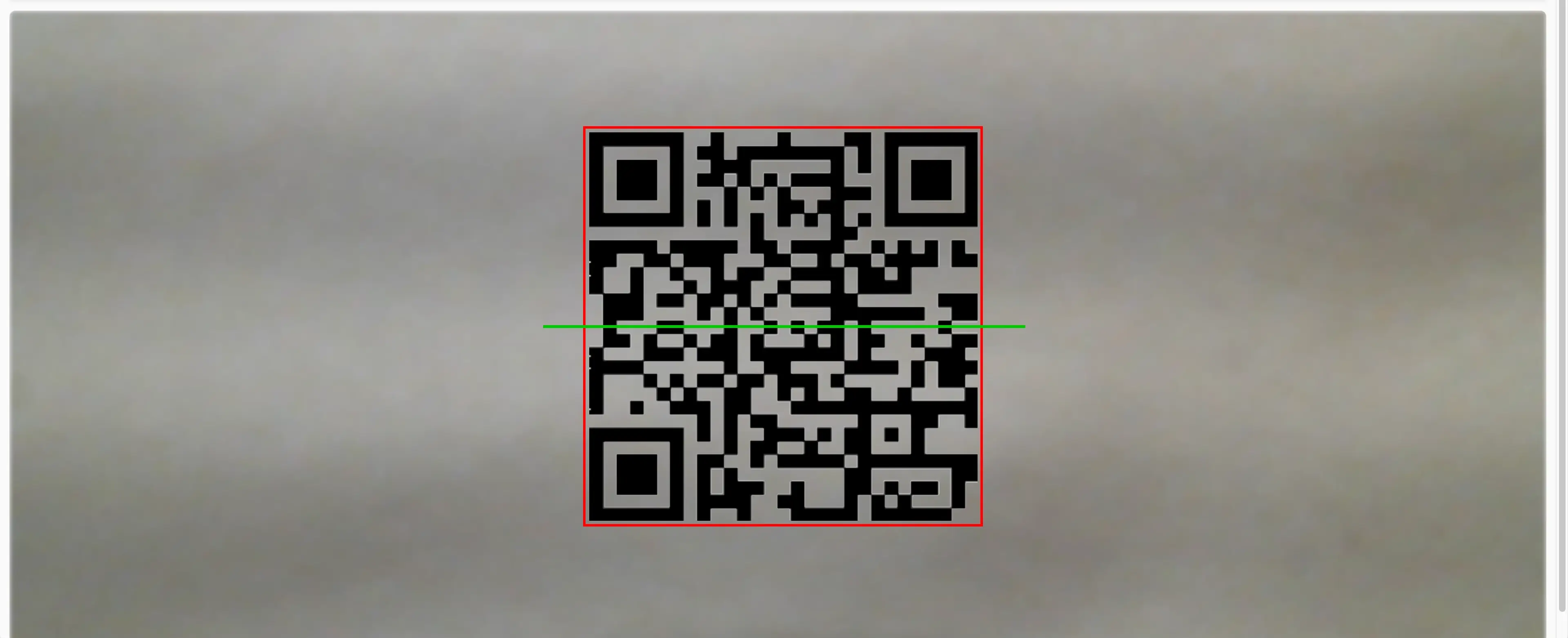
The ticket scanner reads the QR code on each ticket, verifies its validity, and provides a one-click Check-in option for attendees. Once a ticket is checked in, it cannot be scanned again, ensuring secure and accurate entry management.
In version 3.0, introducing Laser scanner support for faster and more accurate scanning. Laser scanner support (Zebra, Honeywell, or any other universal laser scanner available worldwide.). The ticket scanner now supports multi-day check-ins, and seasonal event support. In which, you can scan the same ticket multiple times for different days or events.
Why Choose Webworks Co 's Ticket Scanner?
The ticket scanner system is designed for:
- Universal Accessibility: Works on any device with a web camera - no specialized hardware required
- Lightning-Fast Performance: Optimized for blazing-fast scanning and smooth user experience
- Enterprise Security: Secure QR code validation with fraud protection and duplicate prevention
- Real-Time Validation: Instant ticket verification with live status updates
- Multi-Device Support: Seamless operation across smartphones, tablets, laptops, and desktops
- Role-Based Access: Secure access control based on user permissions and event ownership
- Comprehensive Reporting: Detailed check-in analytics and attendance tracking
- Professional Branding: Customizable interface that maintains your brand identity
{primary} Performance Enhancement: The Ticket PDF design and ticket scanner performance have been enhanced for blazing-fast scanning and a smooth user experience. 😎
System Requirements
Security Requirements
- HTTPS (SSL Certificate): Secure connection required for camera access and data protection
- Modern Browser: Best compatible with Chrome, Firefox, Safari, and Edge browsers for fast and smooth scanning.
- Camera Access: Device must have a camera or web camera for QR code scanning
- Browser Permissions: Browser must have permission to access the camera
Device Compatibility
- Smartphones: Full support for iOS and Android devices
- Tablets: Optimized for iPad and Android tablet interfaces
- Laptops: Seamless operation on Windows, Mac, and Linux laptops
- Desktops: Professional desktop scanning capabilities
Initial Configuration
- SSL Certificate: Ensure your website has HTTPS enabled
- Camera Access: Grant browser permission to access camera
- Scanner Access: Navigate to the scanner page via
Scan Ticketin the header - Permission Granting: Allow camera access when prompted by the browser
Permission Management
- Automatic Prompting: Browser automatically prompts for camera permission
- One-Time Setup: Permission granted once, works seamlessly thereafter
- Manual Configuration: Rare cases may require manual camera access setup
- Troubleshooting: Clear guidance for permission-related issues
{success} Seamless Operation: The QR code scanner will automatically prompt you to Allow Camera. Once allowed, it works seamlessly without further prompts.
{primary} Manual Setup: If your browser does not prompt to Allow Camera (rarely), manually enable camera access in your browser settings.
Ticket PDF
Webworks Co generates professional, secure event tickets with cutting-edge QR code technology that ensures fast, reliable scanning and maximum security.
In version 3.0, we have introduced a new ticket PDF design with a modern, professional look and feel. The ticket PDF is optimized for both digital and printed tickets, ensuring a seamless experience for attendees.
Ticket Design &QR Code Technology
- Unique Identification: Each QR code contains a unique Ticket ID and Order number
- Customer Linking: Direct link to specific customer ticket information
- Security Features: Advanced encryption and fraud protection
- Optimized Scanning: Larger QR code size for faster, easier scanning
PDF Format Benefits
- Universal Compatibility: PDF format ensures compatibility across all devices
- Print-Friendly Design: Optimized for both digital and printed tickets
- Professional Appearance: Clean, professional design that enhances brand image
- Accessibility: Easy access and sharing across different platforms
Security Features
- Duplicate Prevention: Advanced algorithms prevent ticket duplication
- Fraud Protection: Secure validation prevents unauthorized access
- Time-Based Validation: Tickets validated against event timing. Ticket can be scanned only within the event timing.
- Access Control: Role-based access control for ticket management
Multi-Role Access & Distribution
- Admin Access: Administrators can scan tickets for all events.
- Organizer Access: Organizers can scan tickets for their events.
- Scanner User Access: Scanner users can scan tickets for the events they are assigned to.
- Event-Specific Access: Access limited to appropriate events and tickets.
- Secure Distribution: Controlled access prevents unauthorized distribution & scanning.

Scanning & Check-In Process
The scanning and check-in process is designed for maximum efficiency, accuracy, and user experience, providing professional event access control.
1. Camera Mode Scanner: Step-by-Step Scanning Workflow
- Scanner Access: Visit the scanner page via
Scan Ticket->Camera Ticket Scannerin the header - Automatic Start: Scanner starts automatically upon page load
- QR Code Presentation: Present ticket QR code to the camera
- Instant Validation: System validates ticket authenticity in real-time
- Check-In Confirmation: Click
Verify & Check-in for successful validation - Completion: Attendee is successfully checked in and recorded.
- Automatic Scanner Refresh: Scanner automatically refreshes after successful check-in for another ticket scanning.
2. Laser Scanner Mode: Step-by-Step Scanning Workflow
- Connect Laser Scanner: In case of Gun scanners or plug-n-play scanners, connect the laser scanner to the computer, mobile, or tablet via USB or Bluetooth or any other method.
- Open Website in Laser Scanner Device: If it's a Honeywell or Zebra scanner or such kind of Mobile laser scanner, open the website in the laser scanner device.
- Login: Login to the website using your credentials as the website.
- Scan Ticket: Scan the ticket QR code with the laser scanner.
- Instant Validation: System validates ticket authenticity in real-time.
- Check-In Confirmation: Click
Verify & Check-in for successful validation. - Completion: Attendee is successfully checked in and recorded.
- Automatic Scanner Refresh: Scanner automatically refreshes after successful check-in for another ticket scanning.
Real-Time Features
- Instant Validation: Immediate ticket validation and status checking
- Live Feedback: Real-time feedback on scanning process
- Error Handling: Clear error messages for invalid or duplicate tickets
- Success Confirmation: Clear confirmation of successful check-in.
- Already Checked-In: If the ticket is already checked-in, it will show a message in big Orange screen
Ticket already checked-in.
{primary} Best Practices: Please ensure you follow best practices for event check-in. 😋
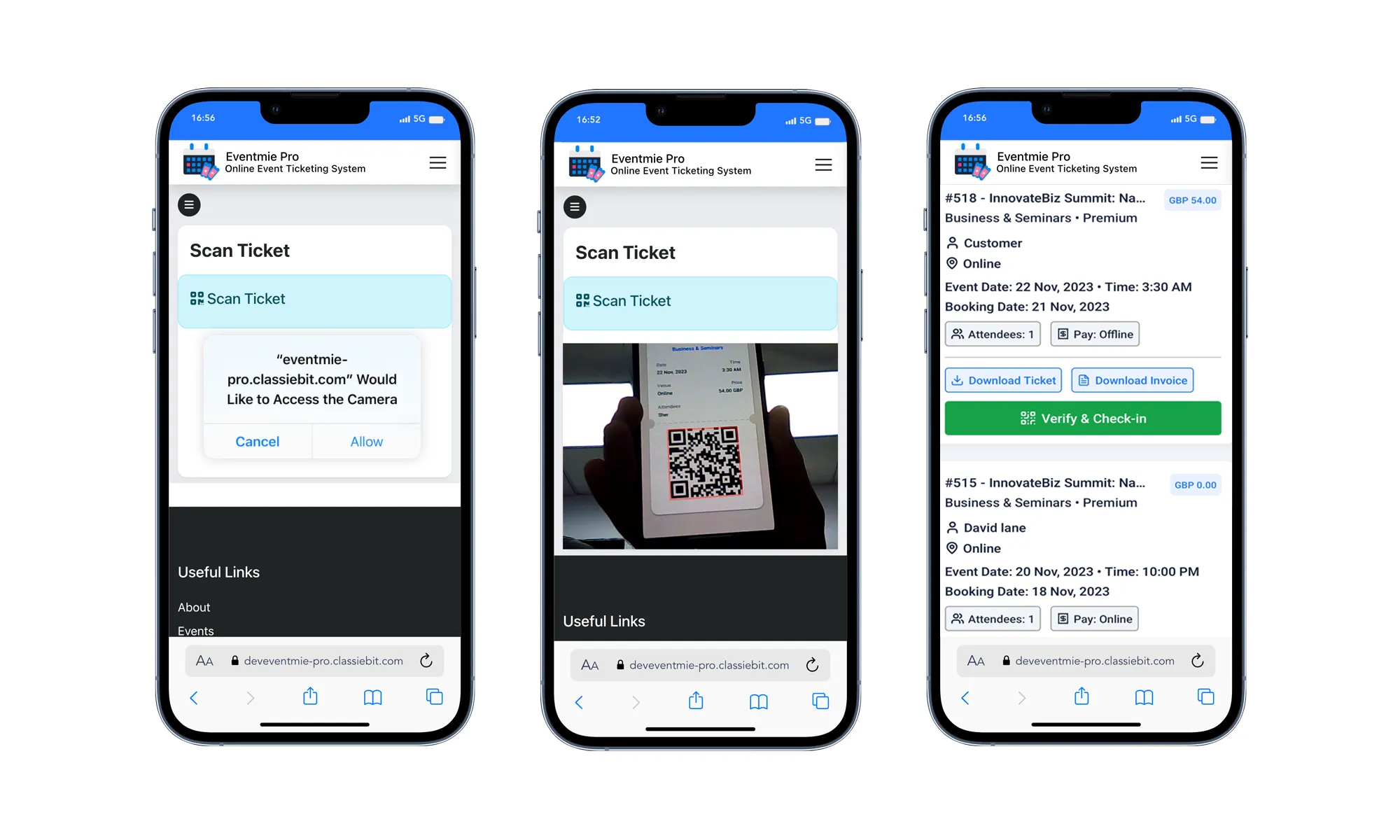
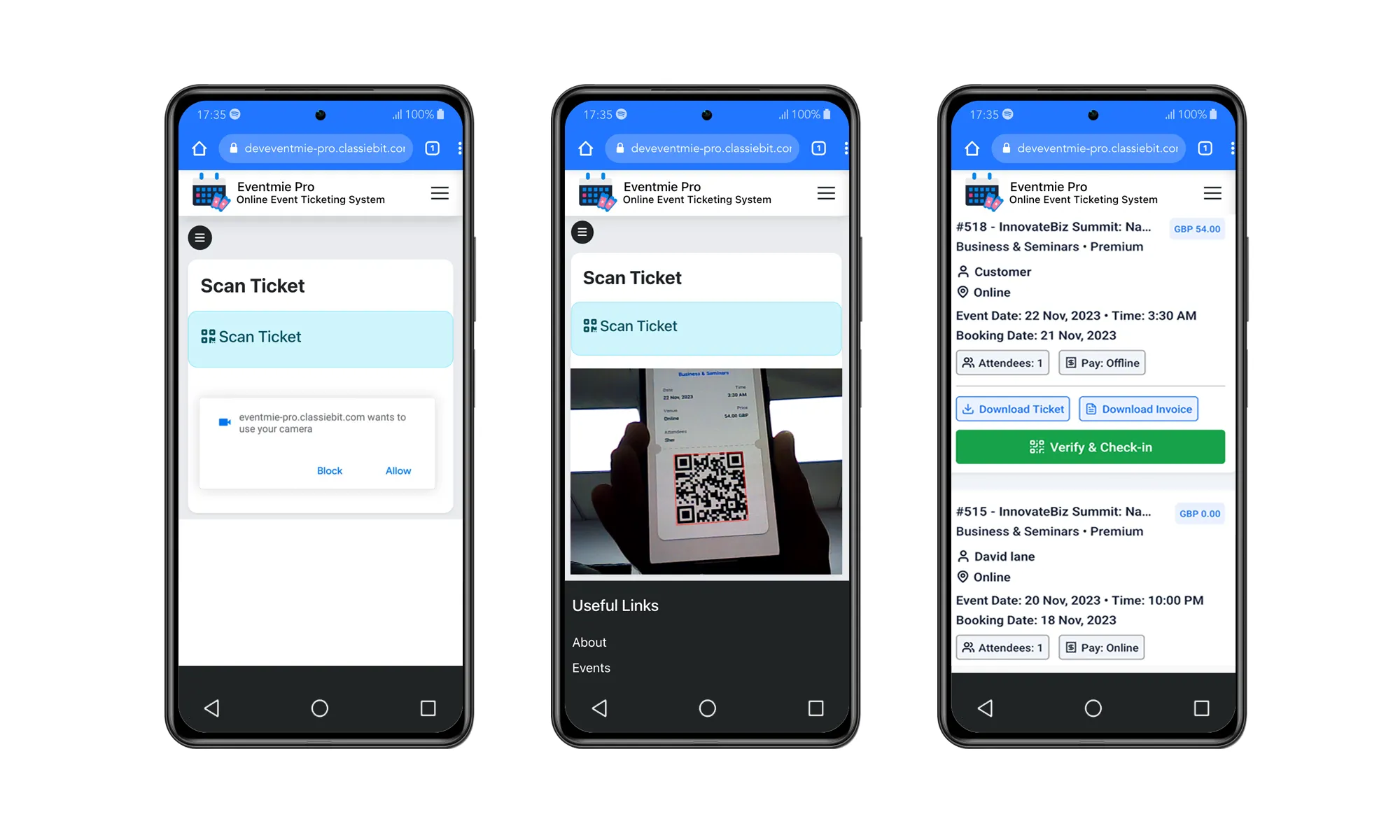
{success} Universal Compatibility: Works perfectly on iPhone, Android, and Desktop devices.
Works perfectly on iPhone.
Works perfectly on Android.
Works perfectly on Desktops.

Advanced Hands-Free Self Check-in Kiosk
Are you looking for a hands-free self check-in kiosk for your event? Take a look at Webworks Co FullyLoaded Advanced Self Check-in Kiosk feature here- FullyLoaded Advanced Self Check-in Kiosk.
Key Features
- Group Bookings: Seamless support for multiple attendees under a single booking, enabling efficient group check-ins.
- Automatic Check-in: Attendees are automatically checked in upon scanning their tickets.
- For hands-free operation: Simply mount the tablet or scanning device at the event entrance. Attendees can independently scan their tickets, and the device will instantly validate and check them in.
- Clear on-screen feedback: A prominent green message for
Ticket Checked-in, a red screen forInvalid Ticket, and an orange screen forTicket already checked-in.
{info} Note: The Advanced Hands-Free Self Check-in Kiosk is available exclusively in Webworks Co FullyLoaded. To access this feature, please upgrade or purchase Webworks Co FullyLoaded.