{success} This Feature only available in Webworks Co FullyLoaded
BitPay Cryptocurrency Payments for Webworks Co FullyLoaded
Why It Matters
Webworks Co FullyLoaded integrates with BitPay—accept cryptocurrency payments worldwide, support Bitcoin, Ethereum, and major digital currencies, and expand your reach to tech-savvy global audiences.
Global Payment Gateway:
- Accept payments from anywhere in the world
- Support for Bitcoin, Ethereum, and major cryptocurrencies
- No currency conversion fees or international payment delays
Seamless Crypto Checkout:
- Fast, secure, and mobile-friendly payment flows
- Reduce barriers for crypto-using attendees
- QR code payments for easy mobile transactions
Reporting & Settlement:
- Track crypto payments and settlements in real time
- Export data for accounting and compliance
- Automatic conversion to your preferred currency
Enable BitPay to accept Bitcoin, Ethereum, and all major cryptocurrencies in your Webworks Co FullyLoaded event management platform. BitPay allows you to receive secure crypto payments from attendees worldwide, including payments via the BitPay wallet.
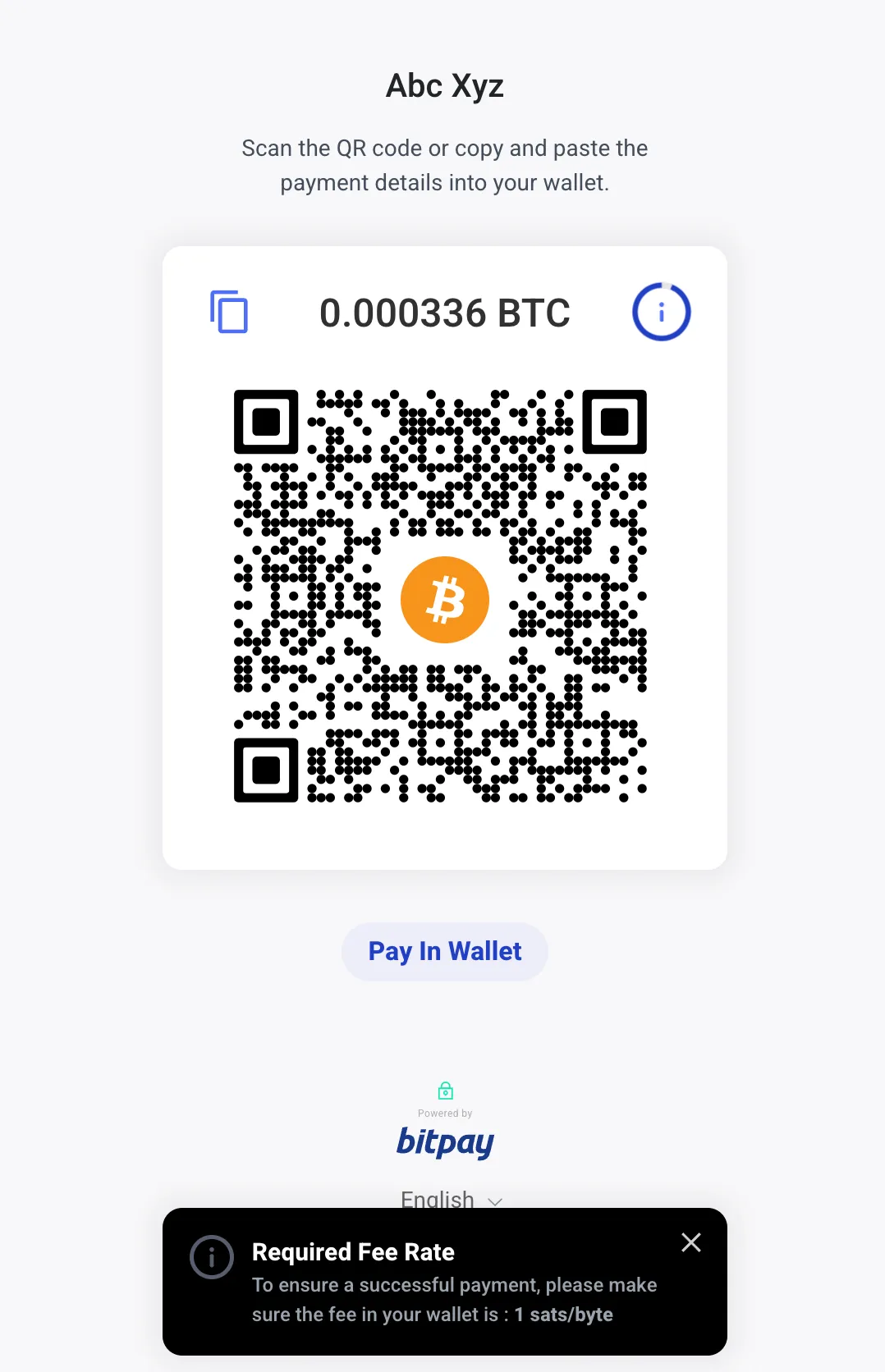
To turn on BitPay, follow the setup steps below. After setup, attendees can pay using a wide range of cryptocurrencies supported by BitPay.
What You Need for BitPay Crypto Payments
- Create a Test BitPay Merchant account at test.bitpay.com
- Create a Live BitPay Merchant account at bitpay.com
How to Setup Test BitPay (Practice Mode)
You can only set up BitPay on a live website (not on localhost). Please upload your website to your live domain before starting.
Now, let's set up Test BitPay for practice payments. The live BitPay setup is the same as test. Make sure you create a BitPay merchant account for both environments.
-
Login to your website as Admin and go to Admin Panel -> Settings -> Apps tab.
-
Enter:
- BitPay Key Name: Enter a new random value (e.g. AbcXyzzMedia)
- BitPay Encrypt Code: Enter a new random secret code (e.g. KJHakj879&*kjkjh)
- Keep BitPay Production Off
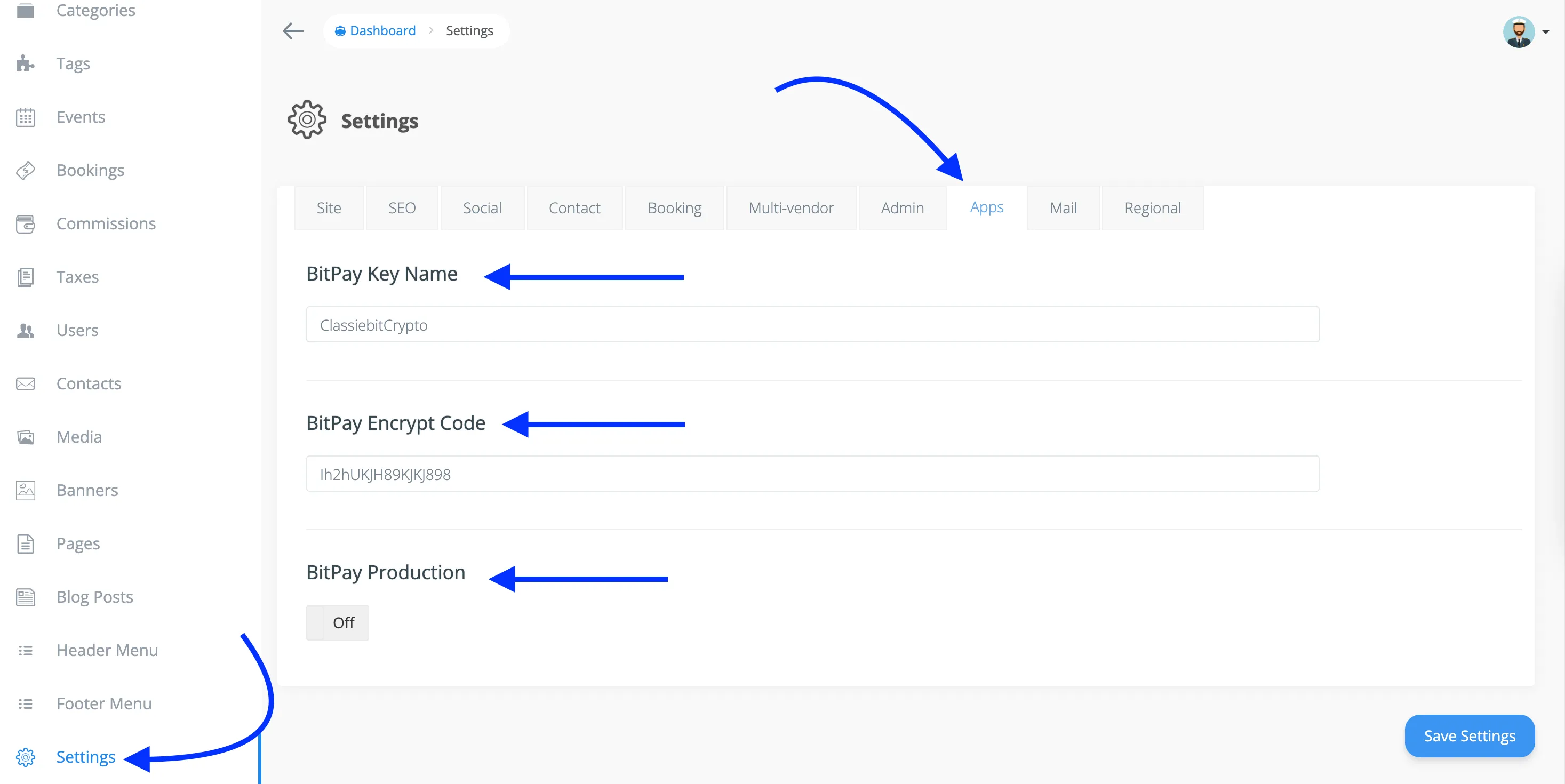
{primary} The BitPay Key Name and Encrypt Code are not provided by BitPay; you can enter any random secret code. Do not change them once entered.
-
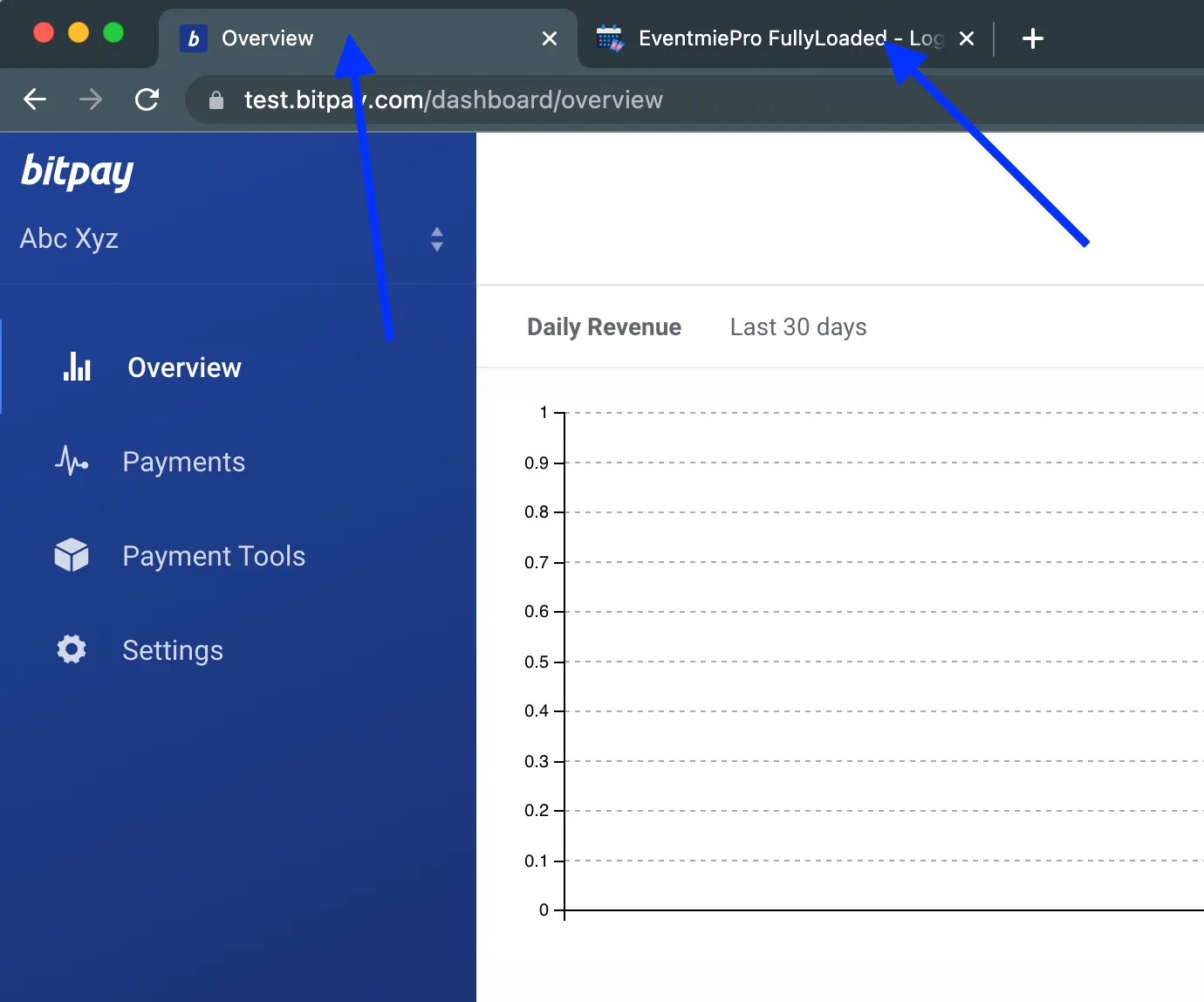
Logout as Admin and login with a Customer account. Keep this tab open.
-
Open a new tab and visit test.bitpay.com.
-
Login to your Test BitPay Merchant account.
-
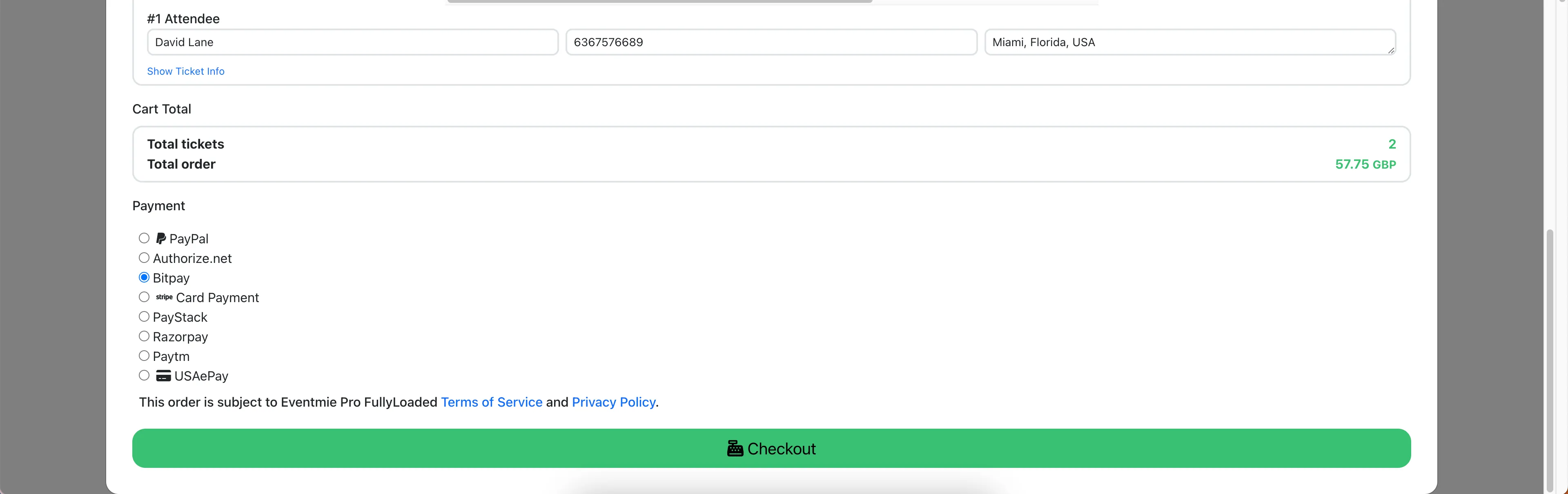
Switch to your website tab, go to an Event Page, and checkout with BitPay.
-
This checkout creates a BitPay Test credentials file on your server, connecting your website to your BitPay Merchant account.
-
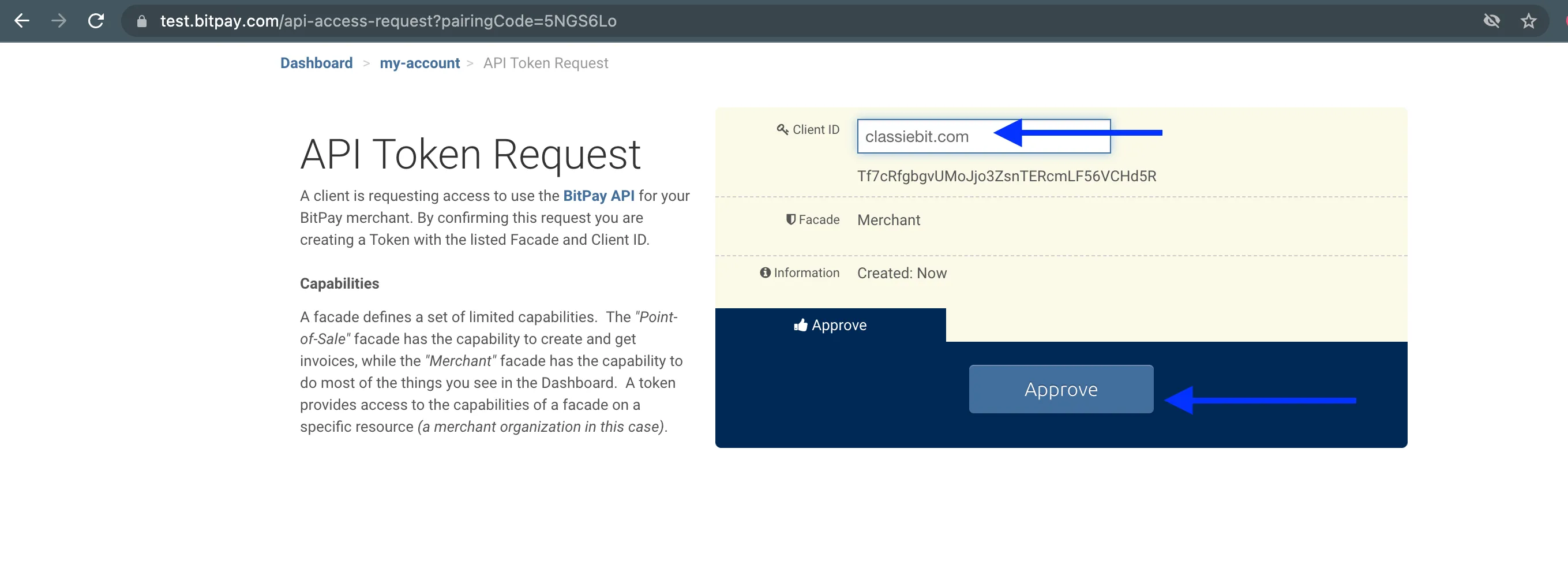
Enter your website/brand name in Client ID and click Approve.
-
Close the BitPay tab. Test setup is complete.
How to Setup Live BitPay (Real Crypto Payments)
Set up Live BitPay to accept real cryptocurrency payments into your BitPay account.
- Login to your website as Admin and go to Admin Panel -> Settings -> Apps tab.
- Turn BitPay Production On
- Logout as Admin and login with a Customer account. Keep this tab open.
- Open a new tab and visit bitpay.com.
- Login to your Live BitPay Merchant account.
- Switch to your website tab, go to an Event Page, and checkout with BitPay.
- This checkout creates a BitPay Live credentials file on your server, connecting your website to your BitPay Merchant account.
- Enter your website/brand name in Client ID and click Approve.
- Close the BitPay tab. Live setup is complete.
How Guests Pay with Cryptocurrencies
Once setup is complete, guests can pay with cryptocurrency as follows:
-
Go to the checkout popup and select the BitPay payment option.
-
On the next page, login to the customer BitPay account and proceed.
-
Select a cryptocurrency (e.g. Bitcoin, Ethereum, etc.) to pay with.

-
A QR code will be displayed for sending the cryptocurrency payment.
-
After successful payment, guests are redirected to your website with a successful booking confirmation.