Manage Events: Streamline, Promote, and Grow Your Events
Efficient event management is the backbone of successful event operations. With Webworks Co , organizers can manage their events from the front end, while Admins have full access to all events via the Admin Panel. This empowers you to boost attendee engagement, drive ticket sales, and deliver a seamless experience for your team and your audience.
- Organizers: Manage your own events directly from the front end.
- Admins: Access and manage all events from the Admin Panel.

{primary} Organizers can perform a variety of event management tasks directly from the front end. Explore the features below.
Why Use Event Management Tools?
Event management is ideal for:
- Efficient Attendee Management: Export attendee lists, segment for marketing, and follow up with ease.
- Event Promotion: Use tags, social sharing, and branded pages to maximize reach and ticket sales.
- Sponsor & Speaker Management: Highlight and manage sponsors, speakers, and VIPs with tags and profiles.
- Team Collaboration: Allow multiple sub-organizers/managers to manage events on your behalf (in fullyloaded only).
- Analytics & Reporting: Track ticket sales, attendee engagement, and event performance.
- Branding & Customization: Use tags, images, and profiles for a professional event presence.
- Compliance & Data Export: Export data for compliance & reporting.
{primary} Pro Tip: Use event management features to save time, boost engagement, and streamline your operations—whether you're running a single event or managing a portfolio of events.
Export Attendees
Export your event's attendee list to a CSV file, including complete booking and customer details for easy follow-up, segmentation, and reporting.
- Click the
Export Attendees button on the Manage Events page. - Use the exported data for email marketing, analytics, or CRM integration.

{success} Best Practice: Regularly export attendee data for compliance, backup, and targeted marketing campaigns.
Manage Tags
Tags help you organize and promote your event by highlighting sponsors, speakers, hosts, guests, VIPs, and more. Create unlimited tags and link them to your events for better visibility, branding, and discoverability.
- Each tag is owned by an Organizer and can be associated with multiple events.
-
Add, edit, and manage tags from the front end for maximum flexibility.

Create Tag
-
Click
Add Tag to create a new tag for your event. -
Fill in the form fields:
- Type – sponsor, speaker, DJ, etc. Make sure to keep it same for same type of tags, to group them together on event page.
- Image – upload an image for the tag.
- Title – name of sponsor, speaker, DJ, or other
- Sub Title – Brand/Company name or any sub-title (optional)
- Website (optional)
- Profile Page – choose whether to show a profile page for the tag
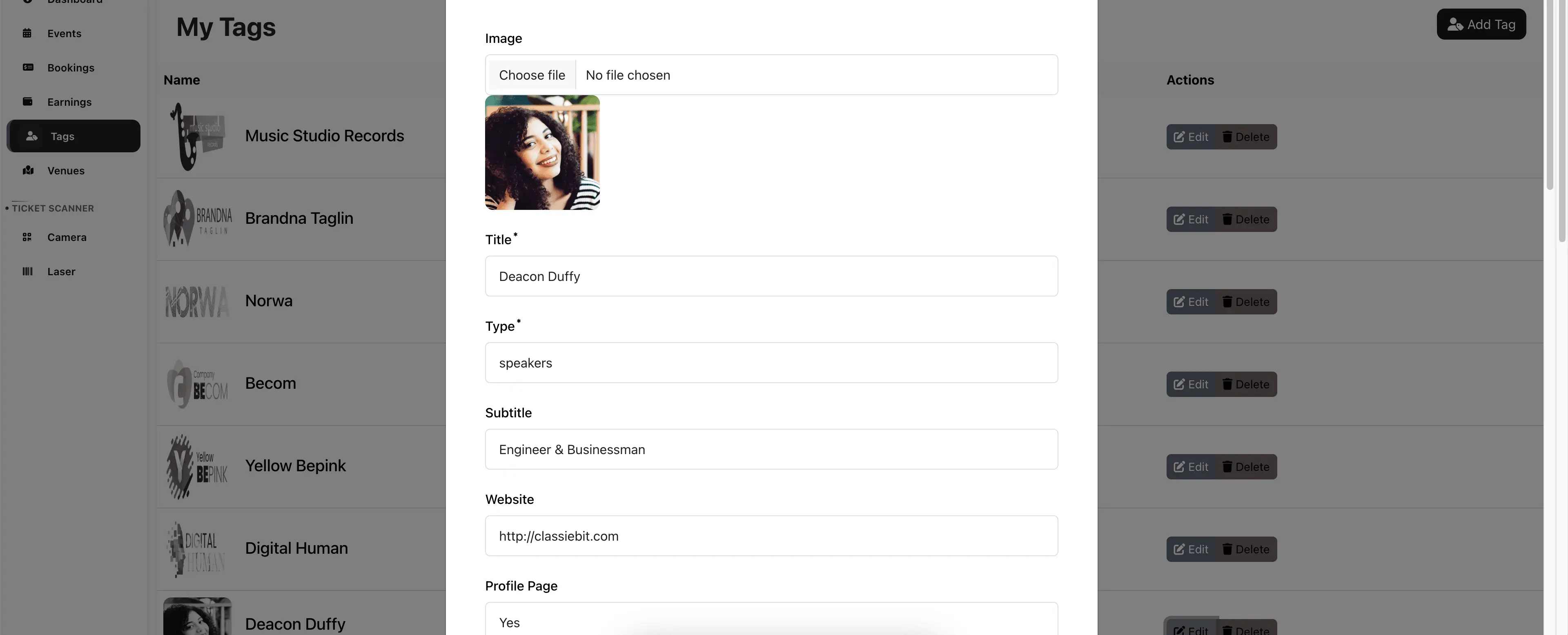
If you select
Profile Page - Yes, you can also add these optional details: -
Description (optional)
-
Phone (optional)
-
Email (optional)
-
Facebook (optional)
-
Instagram (optional)
-
Twitter (optional)
-
Linkedin (optional)
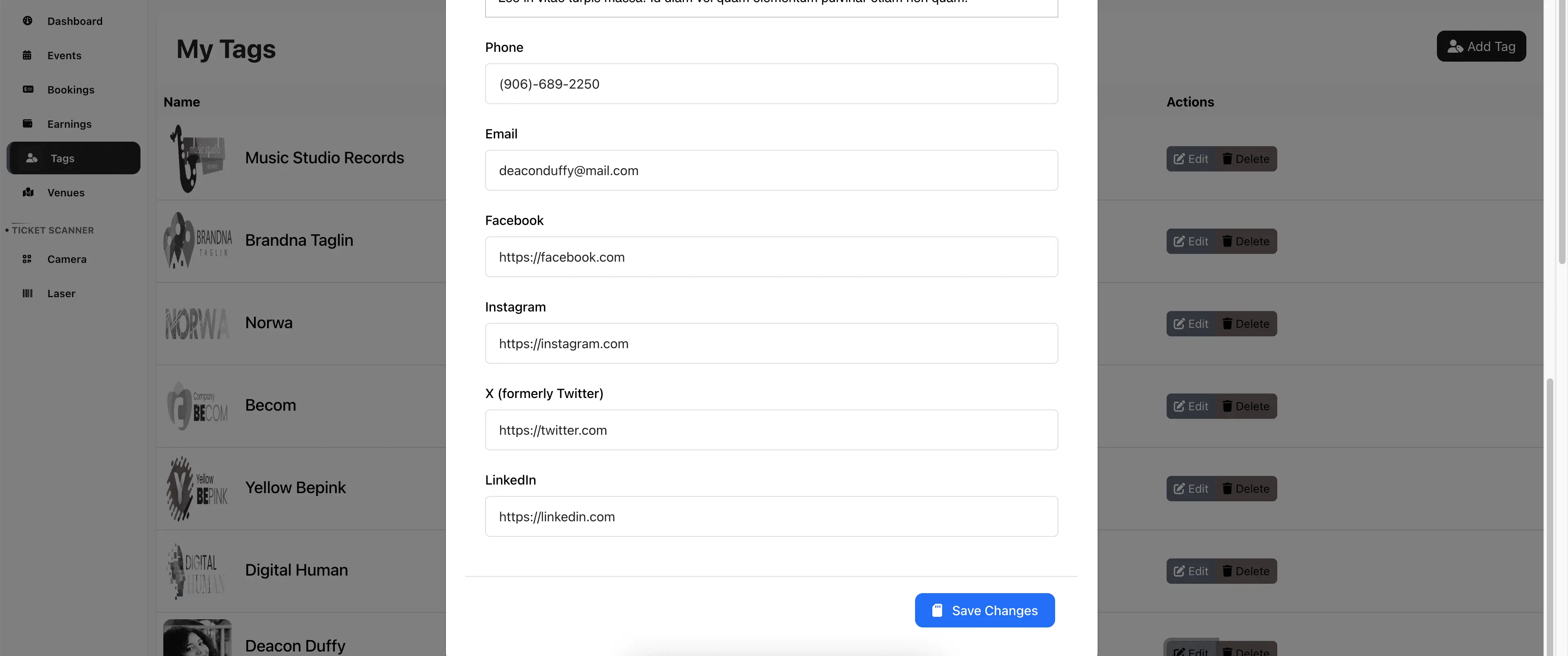
{primary} All of this information will be displayed on the
Tag Profile Pagefor enhanced event promotion and networking.
{success} New tags can also be created and linked directly to an event from the
Event setup form -> Powered By tab.
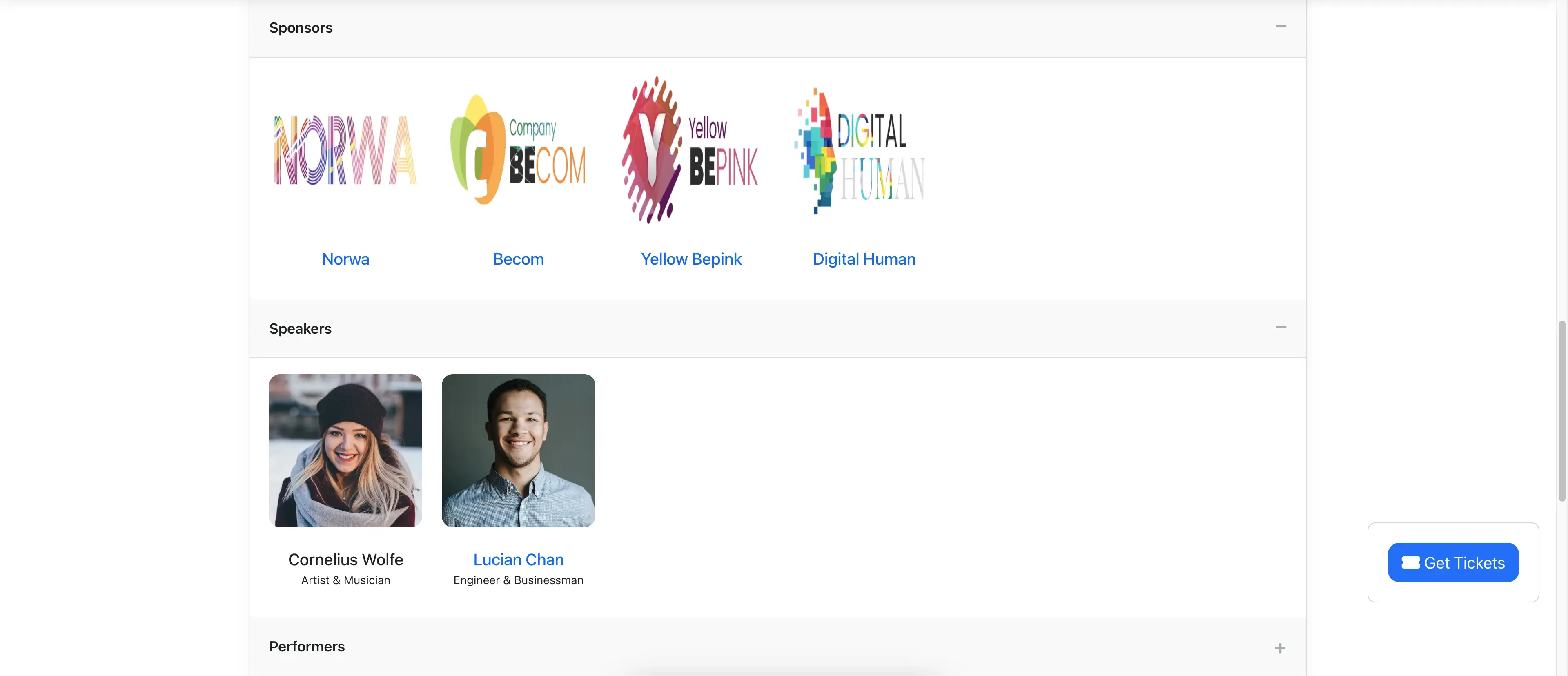
How tags appear on the Event page:
How the Tag profile page looks:
.webp "Show tag profile")
Share Event
Promote your event by sharing it on popular social media platforms directly from the Event detail page. Social sharing helps increase event visibility, drive ticket sales, and attract more attendees.
-
Share events on:
Facebook|Twitter|Linkedin|Whatsapp|Reddit
{success} Pro Tip: Use branded images and compelling descriptions to boost engagement on social media.