Online Events: Host Virtual, Hybrid, and Global Experiences
Effortlessly create, manage, and monetize online events, virtual classes, and hybrid experiences with Webworks Co . Reach a global audience, maximize engagement, and deliver secure, professional virtual events—whether you're hosting a webinar, conference, live show, or online class.
Add private event details such as secret URLs, passwords, or access codes. This sensitive information is securely shared with customers only after they purchase a ticket for your online or virtual event.

Why Use Online Events?
Online Events are ideal for:
- Webinars & Workshops: Educational sessions, product demos, and training.
- Virtual Conferences & Summits: Multi-session, multi-speaker events with global reach.
- Live Performances & Shows: Concerts, theater, comedy, and entertainment.
- Networking Events: Virtual meetups, roundtables, and community gatherings.
- Hybrid Events: Combine in-person and online audiences for maximum flexibility.
- Fundraisers & Charity Events: Reach donors and supporters worldwide.
- Internal Corporate Events: Town halls, team meetings, and remote onboarding.
- Online Classes & Courses: Recurring or one-off educational sessions.
- Religious Services: Virtual worship, study groups, or ceremonies.
Create Online Event
Click
{primary} This section covers the unique steps for creating an Online Event. All other steps are the same as for Simple Events or Repetitive Events.
Online Location
After completing the initial event creation steps, go to the Location tab and check the Online Event checkbox to enable online event options.
-
When you check the Online Event box, a new text field appears.
-
In the Online Location field, enter your secret details (e.g., private URL, password, or access code).

-
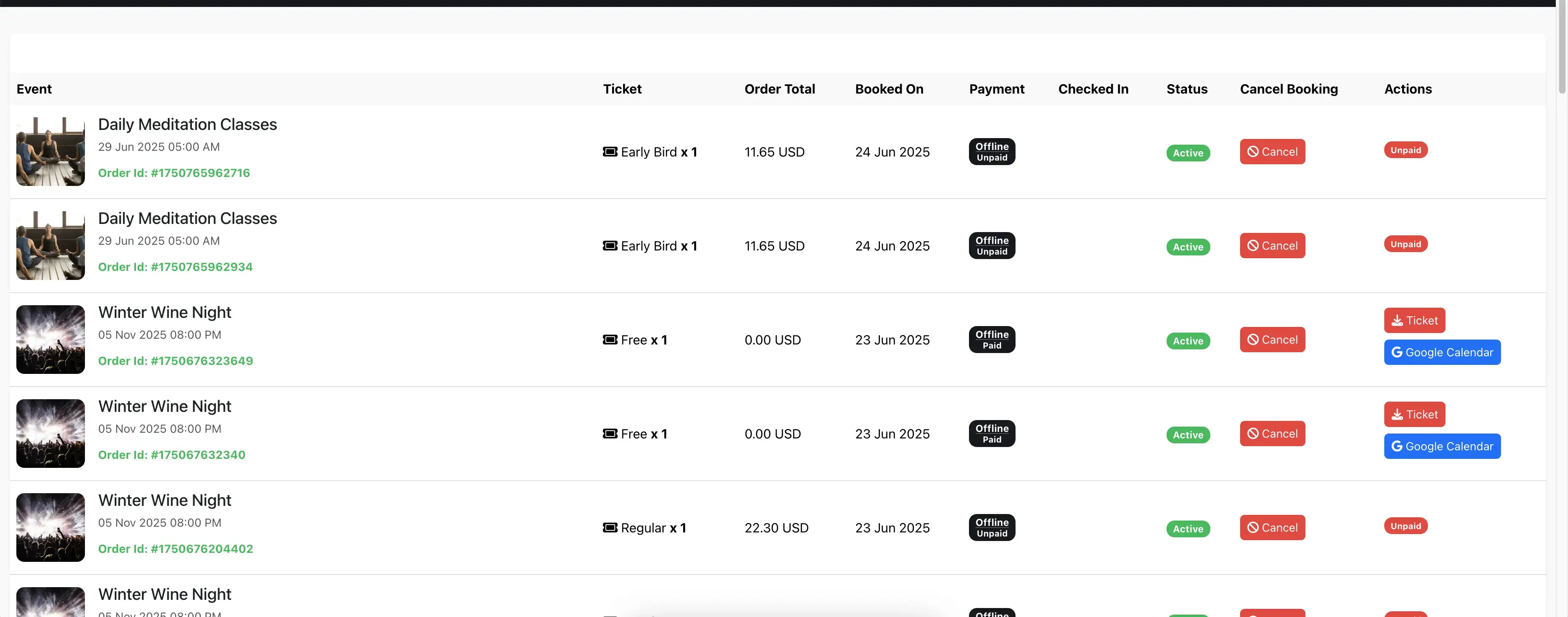
This private information is securely shared with customers only after they purchase a ticket. It appears on their My Bookings page.
-
When a customer clicks
Online Event , a popup displays the secret details you entered.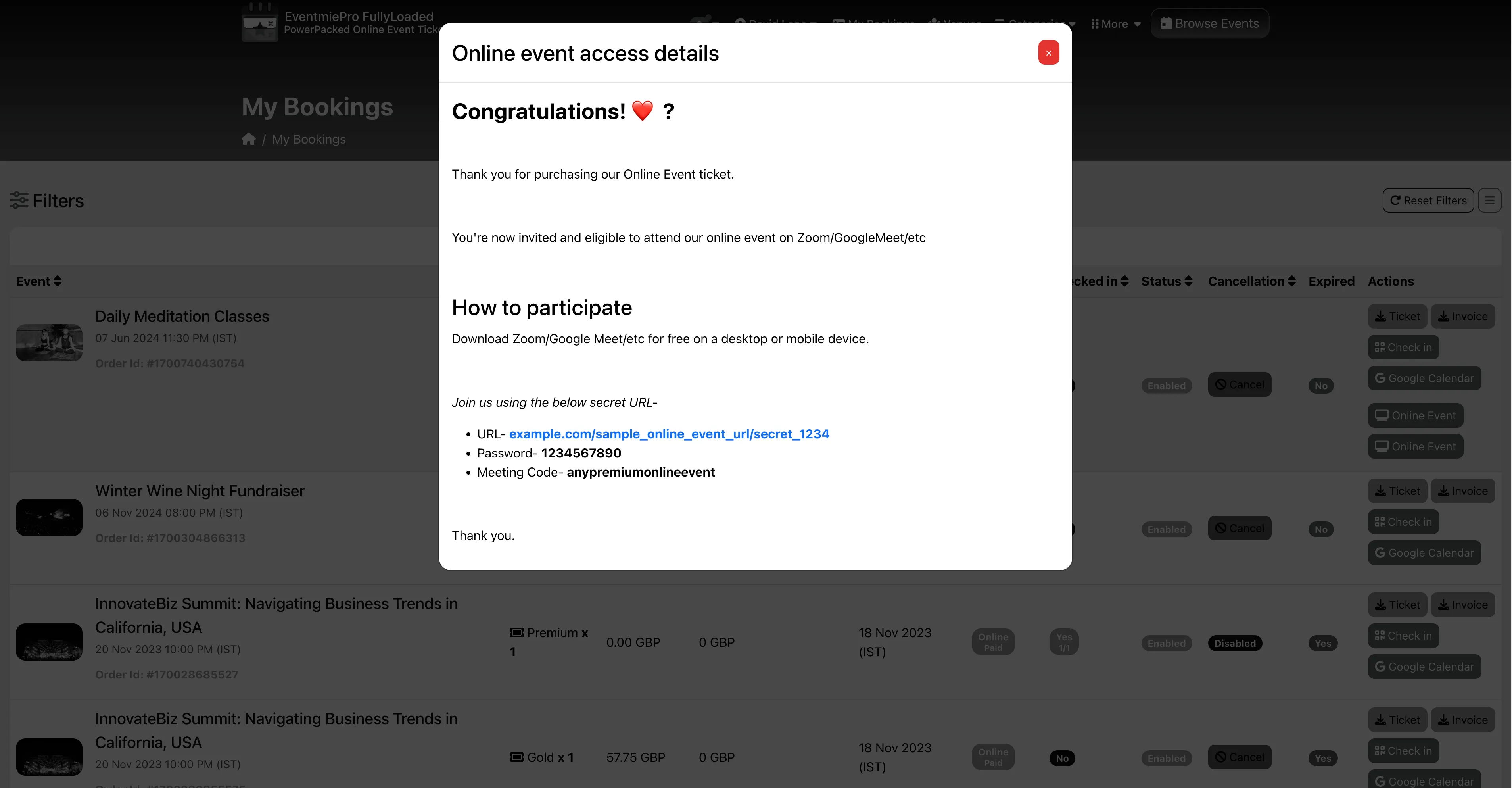
{success} Security Tip: Only ticket holders can access your private event details, protecting your content and revenue.
Compatible with Any Streaming Platform
Webworks Co is platform-agnostic—use any video conferencing, live streaming, or group video calling service, including:
- YouTube Live, Vimeo, Facebook Live
- Zoom, Google Meet, Microsoft Teams
- Twitch, Crowdcast, Hopin, Airmeet, and more
{primary} Pro Tip: For interactive features (chat, Q&A, polls), choose a platform that supports your engagement goals.
Best Practices & Pro Tips
- Test Your Setup: Run a rehearsal to ensure your streaming link, access codes, and reminders work as expected.
- Engage Your Audience: Use platforms with chat, Q&A, and polls to boost participation.
- Secure Your Event: Change access codes for each event if needed, and never share links publicly.
- Follow Up: Send post-event surveys or recordings to attendees for added value.
Troubleshooting & FAQ
Q: Why can't attendees access my online event? A: Ensure they are logged in, have purchased a ticket, and you've entered the correct access details.
Q: Can I host a recurring online event? A: Yes, use Repetitive Events for recurring schedules.
Q: How do I send reminders or follow-ups? A: Integrate with Mailchimp, Twilio, or your preferred email/SMS tool.
Q: Can I combine online and in-person attendance? A: Yes, create a hybrid event by offering both online and physical tickets.
Q: I want to integrate conference or webinar platform withing my own website or domain? Where can I get more development support? A: See Support & Customizations or contact our team.