{success} This Feature only available in Webworks Co FullyLoaded
Promocodes & Discount Codes in Webworks Co FullyLoaded
Webworks Co FullyLoaded gives you powerful tools to create, manage, and analyze promo codes—helping you boost sales, reward loyal customers, and run targeted marketing campaigns.
Create and manage discount promocodes that customers can apply to event tickets during checkout in your Webworks Co FullyLoaded Laravel event management platform. Boost ticket sales and event marketing with flexible coupon options for both admins and organizers.
As Admin, you can create multiple promocodes with different configurations—fixed or percentage-based discounts, usage limits, and more.
Organizers can assign any of these promocodes to their event tickets, even using different codes for each ticket. They can then promote these codes to their audience for special discounts.
Attendees can apply promocodes at checkout to receive instant ticket discounts.
- Organizer-Level Management:
- Organizers can create and manage their own promo codes
- Set start/end dates, usage limits, and eligibility criteria
- Flexible Discount Options:
- Percentage, fixed amount, or custom discounts
- Apply to specific events, ticket types, or attendee groups
- Usage Analytics:
- Track promo code performance and ROI
- Exportable reports for marketing analysis
- Integration with Marketing Automation:
- Combine promo codes with email, WhatsApp, and SMS campaigns
- Automated reminders for expiring or unused codes
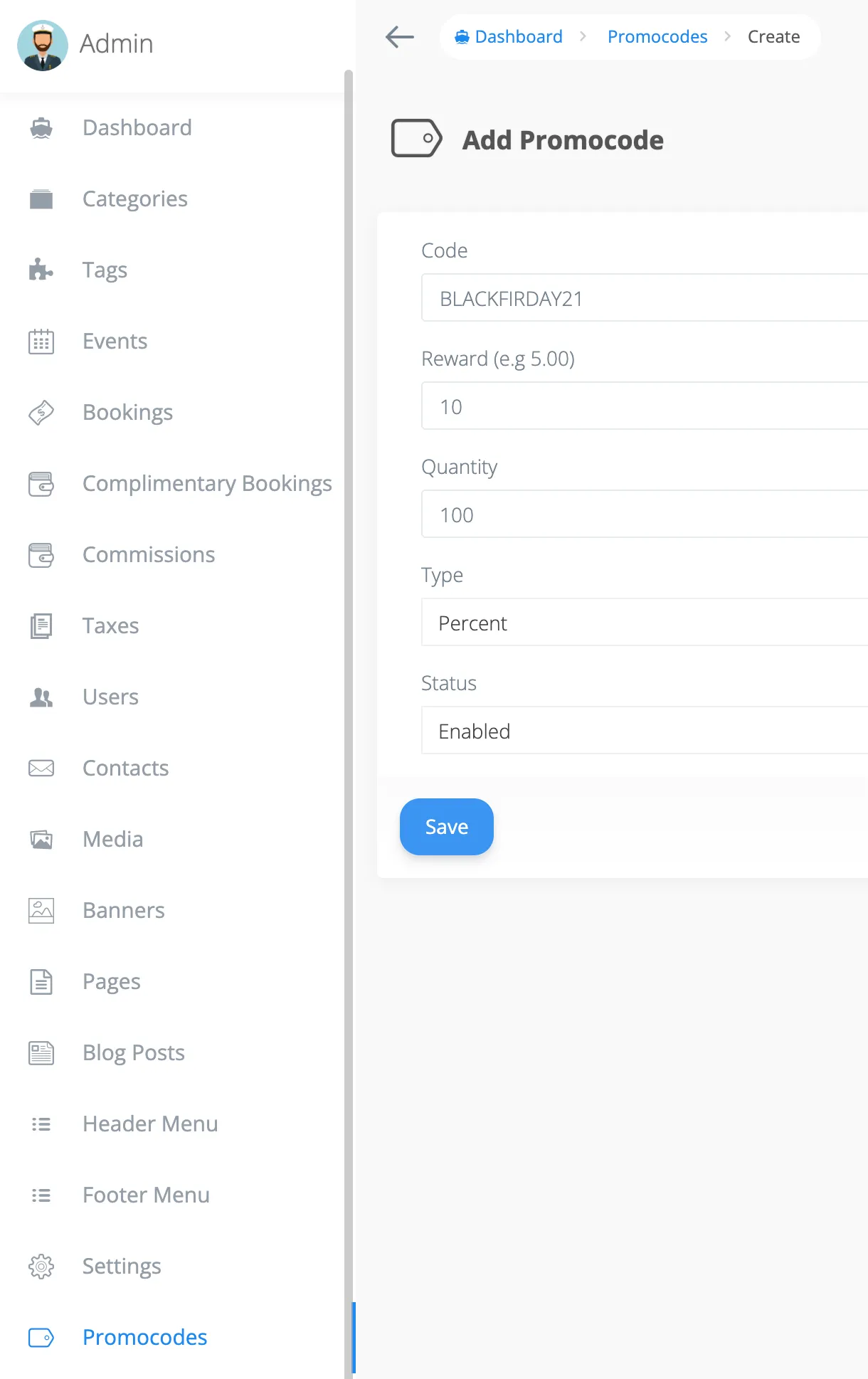
How to Create Promocodes (Admin)
-
Login as Admin and go to Admin Panel -> Promocodes -> Add New.

-
Configure your promocode:
- Code: Enter a unique promocode of your choice
- Reward: Enter the discount value (fixed or percentage)
- Quantity: Set the max usage limit (e.g. 100 means 100 unique users can apply the code)
- Type: Fixed (fixed value discount) or Percent (percentage of ticket price)
- Status: Enable or disable the promocode
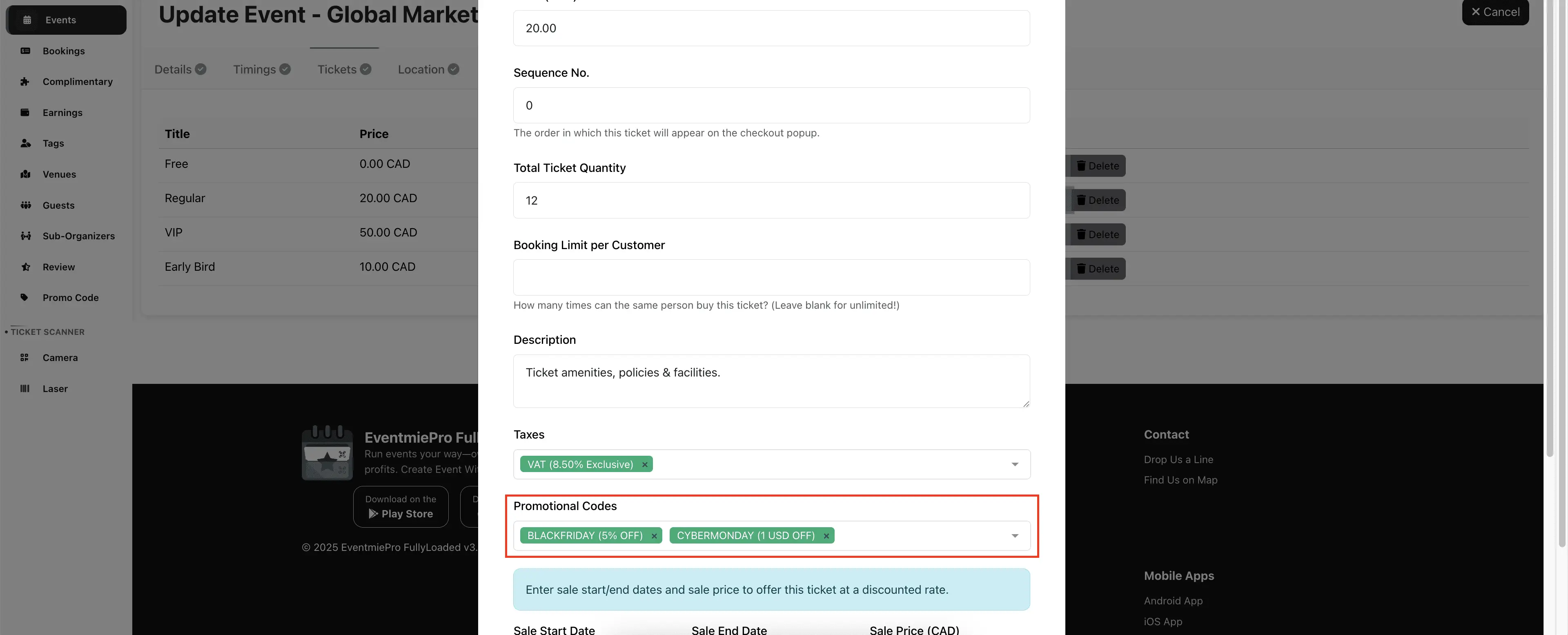
How to Set Promocodes on Event Tickets (Organizer)
Organizers can assign promocodes to their event tickets that the Admin has created.
- Login as Organizer and go to Manage Events -> Edit -> Tickets tab.
-
Create a ticket and select one or more promocodes from the dropdown.
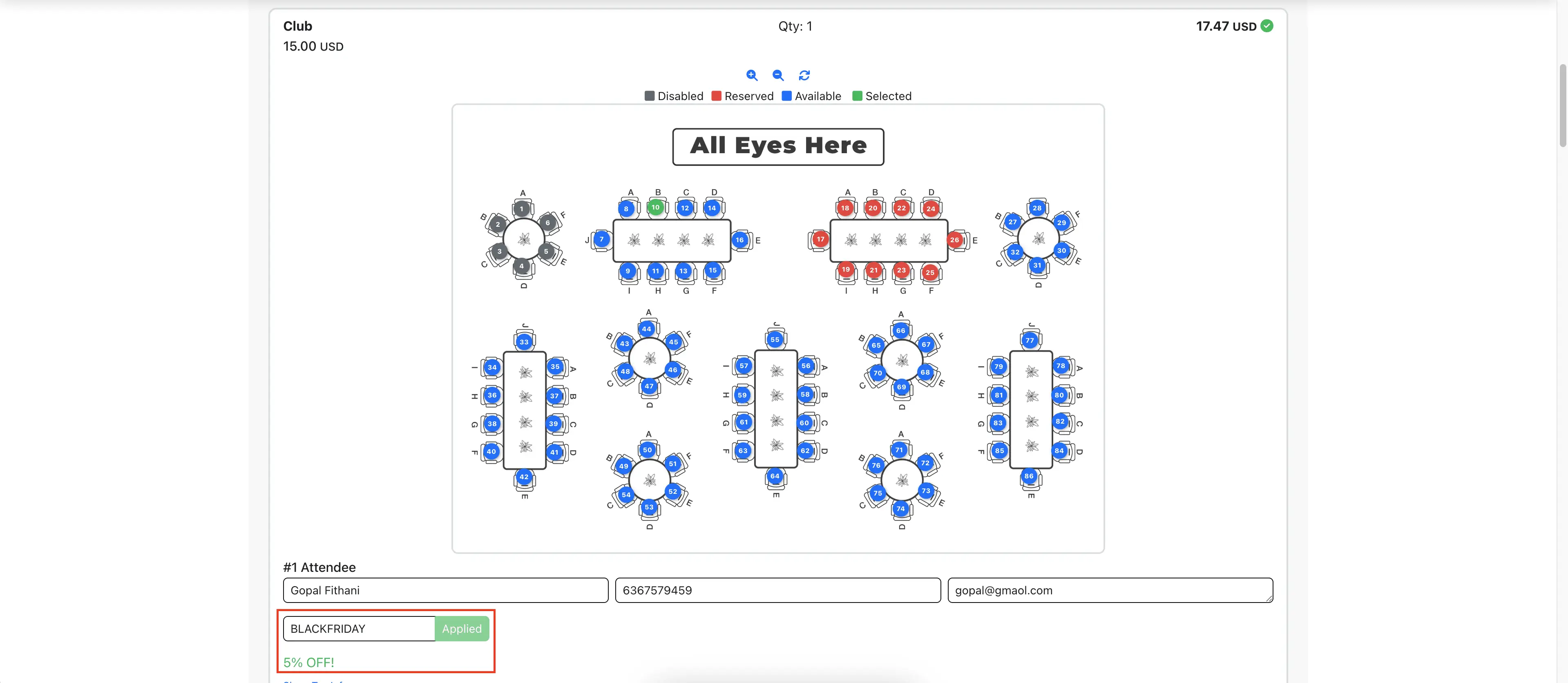
How Attendees Apply Promocodes at Checkout
Customers can apply promocodes on the Checkout Popup for instant discounts.
- Go to the Event Page and proceed to Checkout.
-
Enter the promocode for any ticket and click Checkout.